Your flight log
Everything tied to logging and reviewing the flights you've actually flown.
Log your flights
Your flying history, built up trip by trip — scan a screenshot and skip the manual entry.
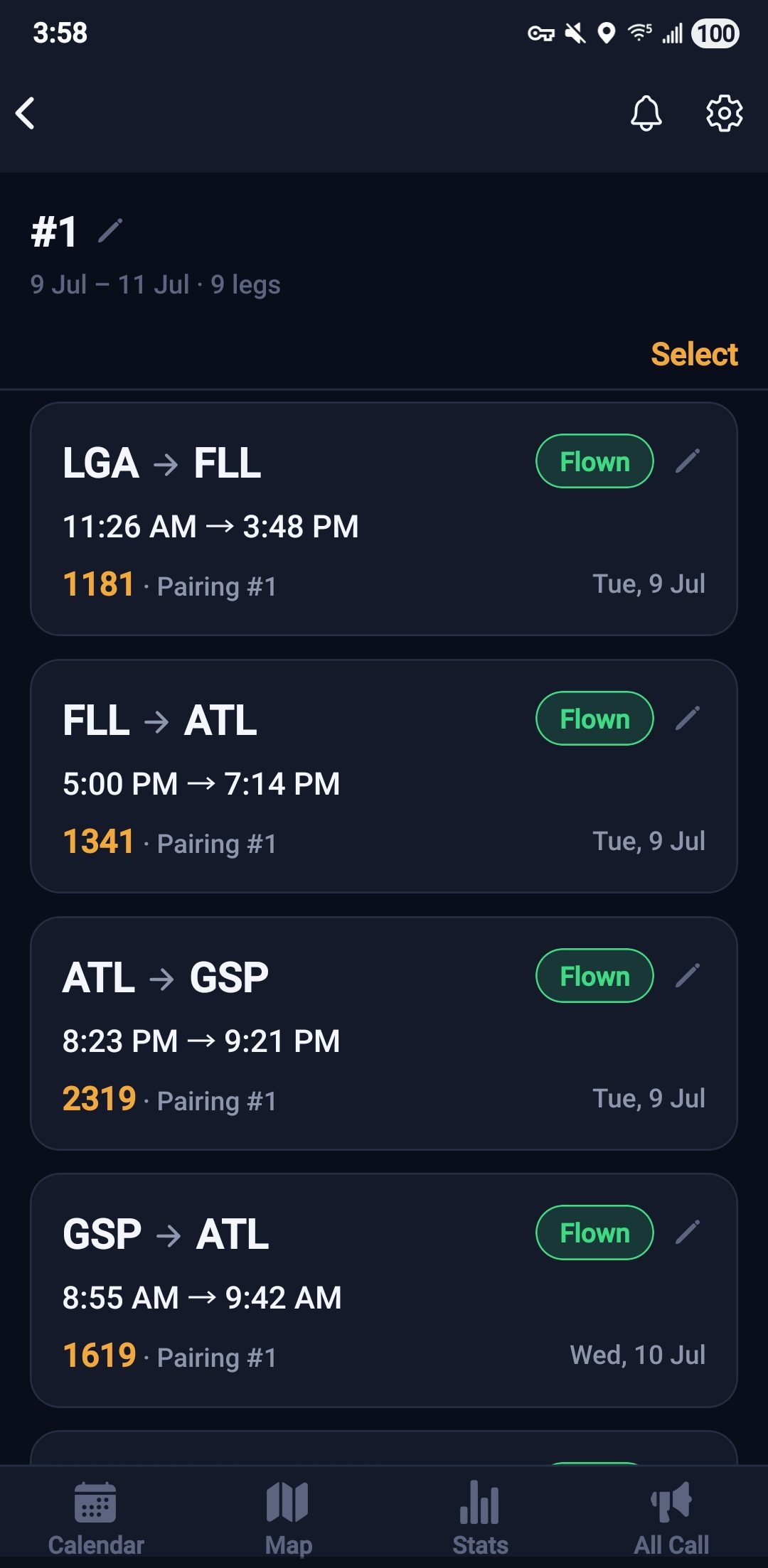
- Open the Add tab — it opens on From screenshot by default.
- Upload a screenshot of your pairing/assignment from your crew scheduling system. It's parsed automatically — review the legs it found, fix anything it got wrong, then save.
- Didn't fit the whole pairing in one screenshot? Tap + Add legs from another screenshot on the review screen to add more without starting over — or + Add a leg manually for one no screenshot showed at all.
- No screenshot, or picked up a trade? Switch to Manual entry and fill in the flight number, date, and details yourself.
- Either way, it's on your calendar and in your flight log immediately.
Where you've been
Every route you've flown, drawn out — not a list, a map you can tap into.
Your route map
Every city you've actually flown to, drawn as a line on a map you can tap into.
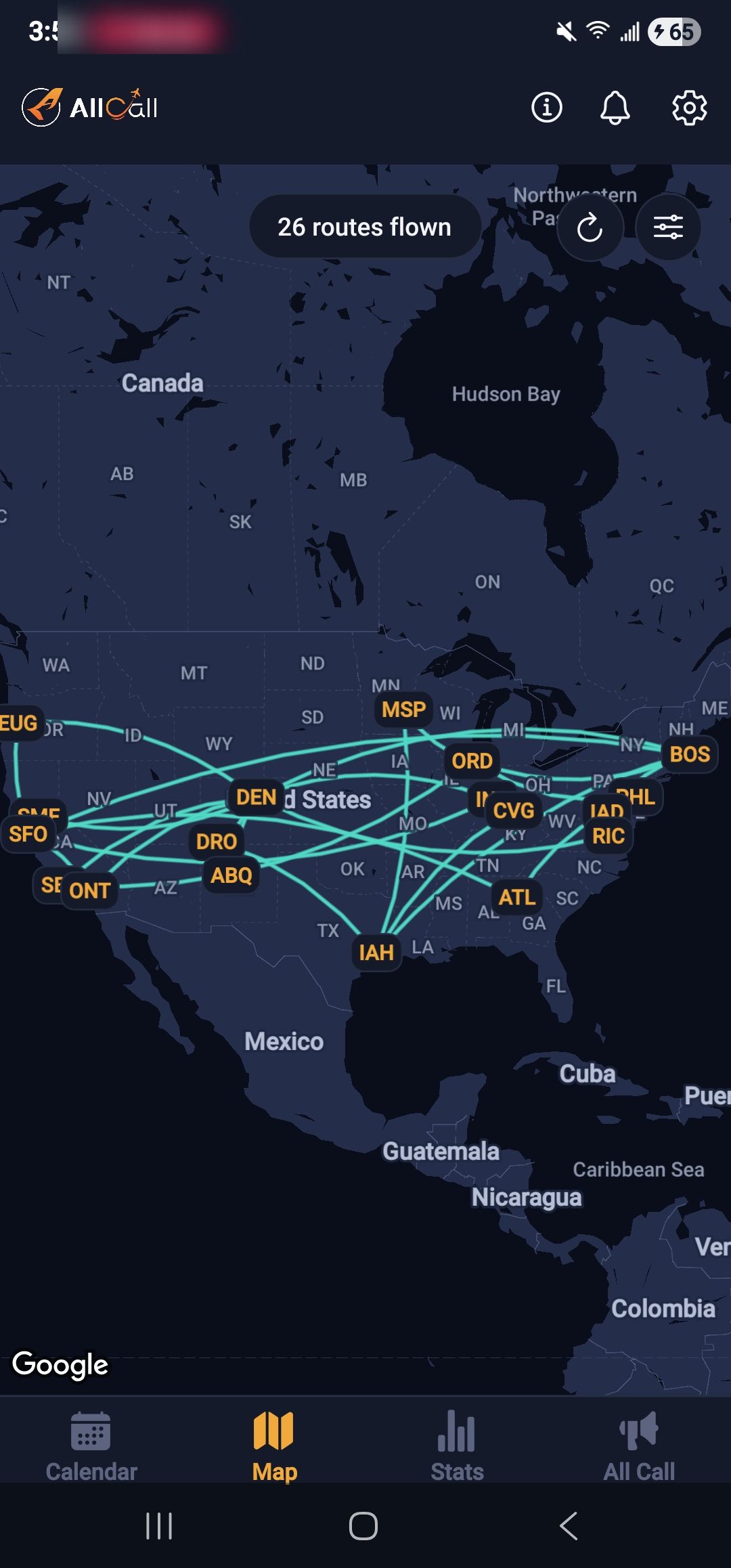
- Open the Map tab to see every route you've flown, drawn as a line between airports.
- Tap any route to see its full history — every date and flight number flown on it, most recent first.
- Toggle airport codes on or off from the map's options menu, depending on how cluttered you want it.
- Friends who've turned on "Show me on friends' maps" (Settings → Crew Connect) show up as their own marker — tap one to see their name and current city. Off by default, and separate from any notification setting.
The numbers
Totals that build themselves from what you've already logged.
Flight stats
Every flight you log rolls up automatically — no extra step required.
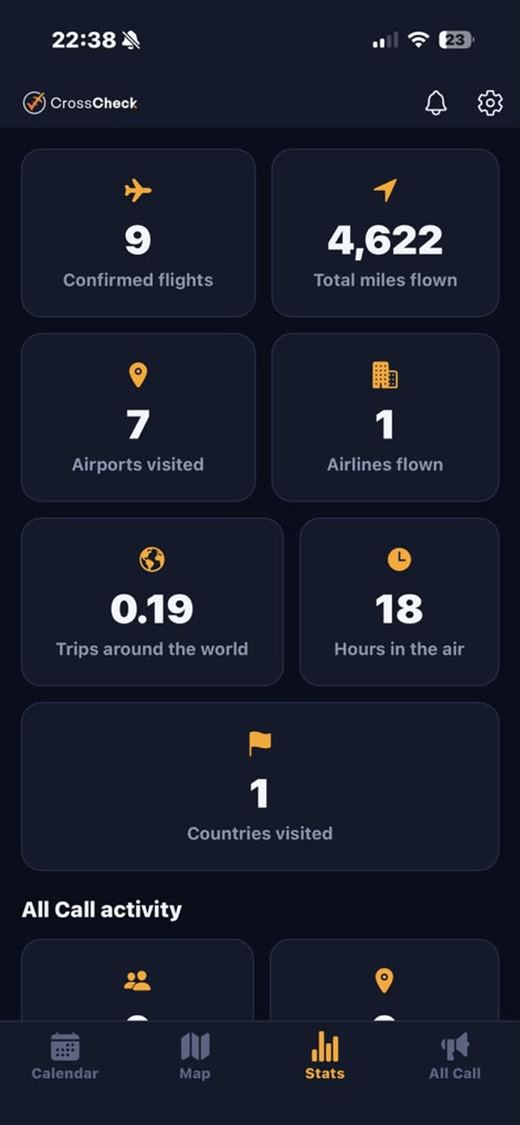
- Open the Stats tab to see total flights, total miles, and total hours flown.
- These update the moment a flight is logged — there's nothing to calculate or refresh yourself.
- Tap States visited (or States to go!) for a full 50-state checklist — see exactly which ones are left.
Crew, wherever you land
Finding out who's nearby, calling out that you're free, planning the actual meetup, and everything around it.
Who's around & touchdown alerts
This one runs itself — no steps to take beyond keeping notifications on.
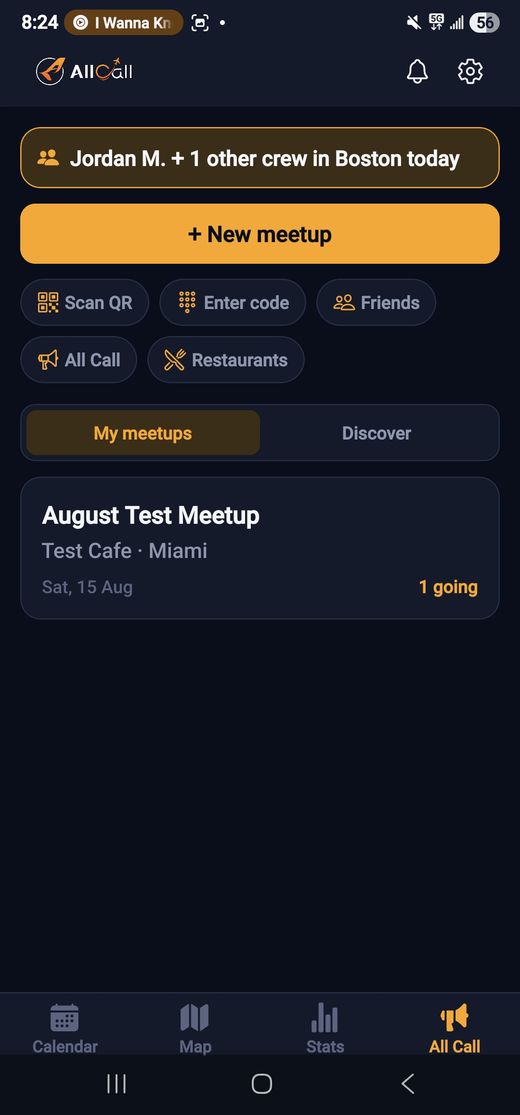
- Once your home base/city and flight schedule are set, All Call quietly checks who else — friends, or fellow verified crew — has a real layover in the same city as you.
- Land somewhere with a match and you'll get a touchdown alert the moment wheels stop. No match, no notification — silence means nobody's there.
- Check the All Call tab any time to see who's around without waiting for a push.
All Call
Post that you're free — crew actually nearby see it, no group-chat archaeology required.
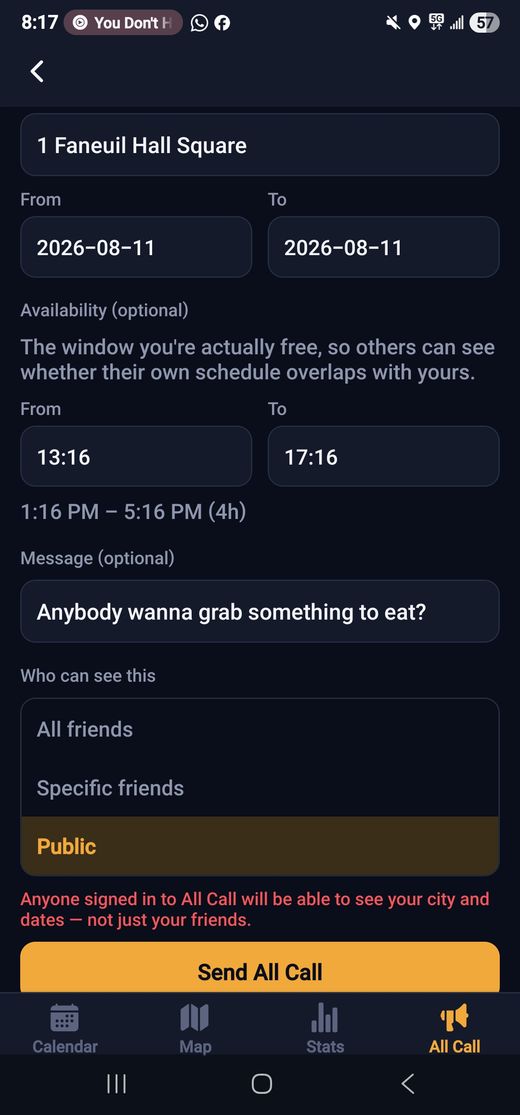
- Open All Call → All Call and tap the + button.
- Say what you're up for, pick your city and time window, and post it.
- To find one instead, browse the All Call feed for your city and tap any post to respond or join.
Open Time
Land somewhere with a meetup already happening, and All Call tells you — no searching required.
- When you have a genuine confirmed layover (8+ hours) somewhere, All Call checks whether any meetups are already set up in that city on that date.
- A match shows up automatically on your Calendar that day — no toggle, no posting, nothing to turn on.
- Tap the day, then tap the meetup to open it and join.
Meetups & chat
Plan the actual dinner — open to any verified crew nearby, or locked to your circle with a code or QR.
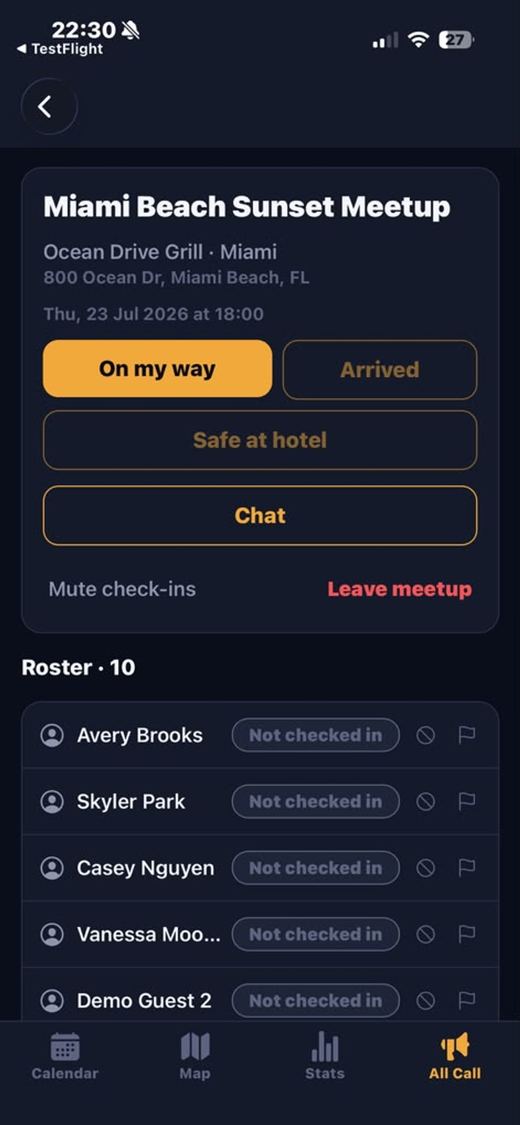
- Open the All Call tab and tap + New Meetup.
- Add a title, city, restaurant, and date/time.
- Choose Open (any verified crew nearby can find it) or Private (share the code or QR only with people you invite).
Chat & polls
Talk with the group, and settle "where should we eat" with an actual vote instead of five people texting past each other.
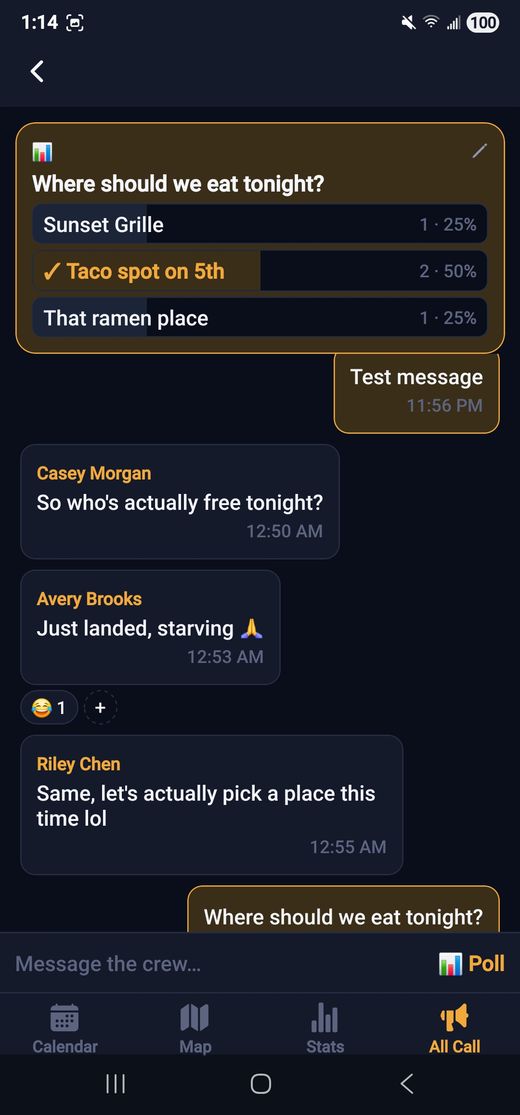
- Inside a meetup, open Chat to talk with everyone in it.
- Long-press any message to react with an emoji.
- Tap the poll icon to create one — add a question and 2-6 options. It pins to the top of the chat so nobody has to scroll to find it, and still stays in the conversation at the point you posted it.
- Tap an option to vote, or change your vote any time.
- The poll's own creator, or the meetup organizer, can edit it later — reword the question, add or remove options — from the pencil icon on the poll. Rewording an option keeps its votes; removing one only drops that option's votes.
Friends
Crew you actually want a heads-up about — add them once, get notified every time your layovers line up.
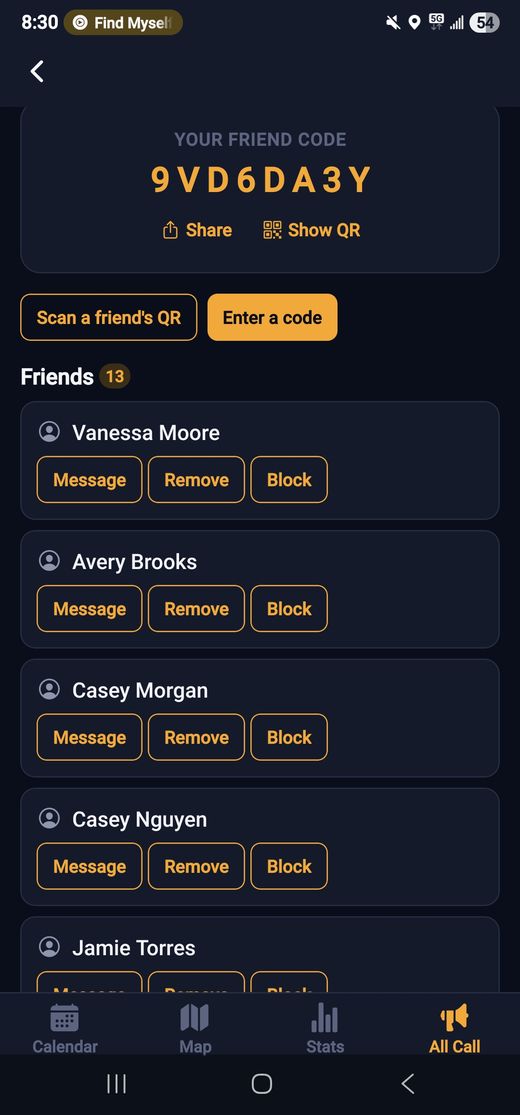
- Open All Call → Friends and tap Enter a code, or scan their QR straight off their Crew Badge.
- Once you're both friends, message each other any time from the Friends tab — no meetup required.
- Friends get priority billing in touchdown alerts and Who's around — you'll always see them named specifically, not folded into a generic crew count.
Crew Meals
Terminal deals for a quick sit between flights, off-airport spots for a real layover — crew discounts wherever you happen to be, no coupon to dig for.
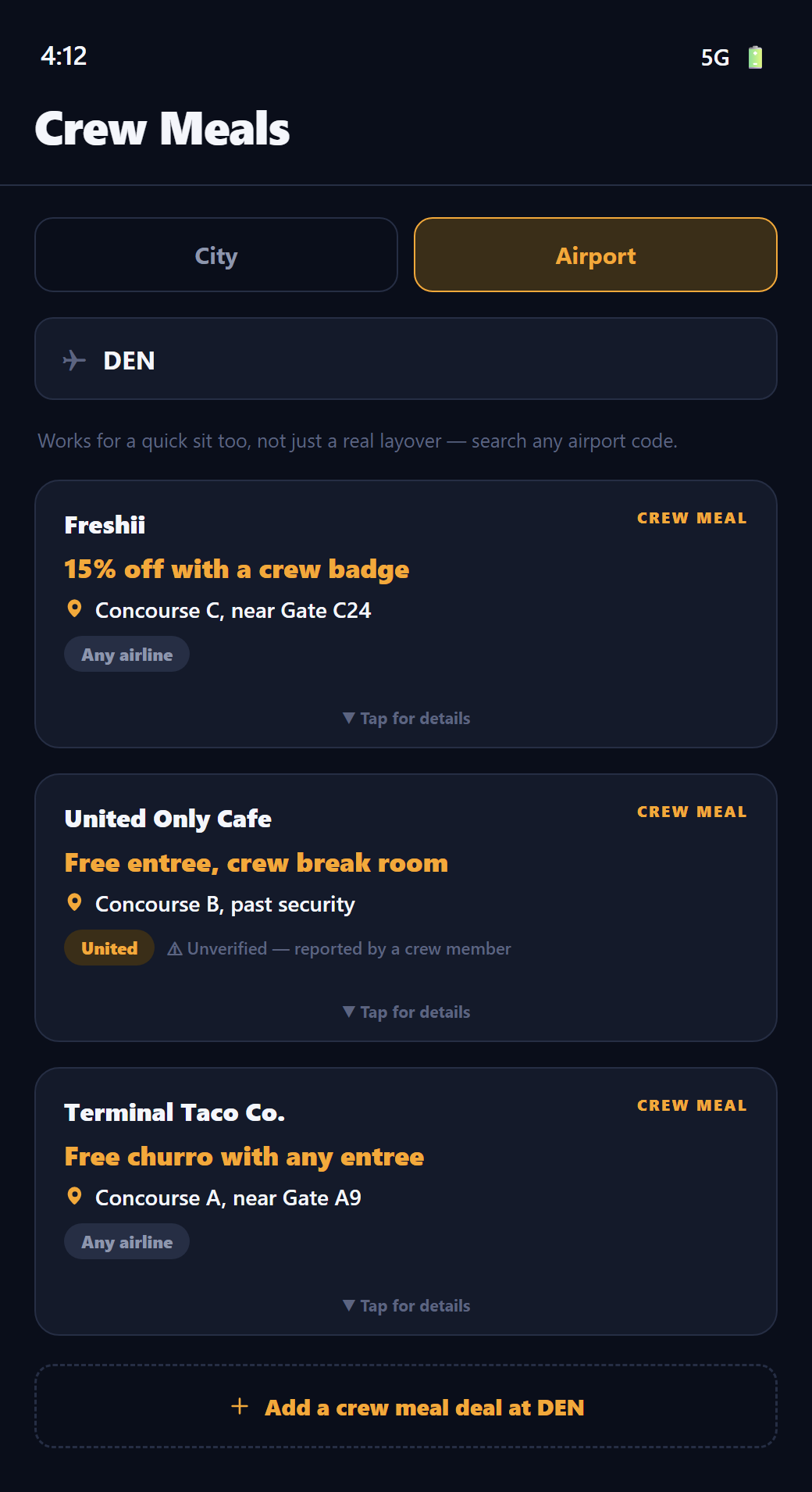
- Open All Call → Crew Meals — switch between City (off-airport venues, matched to your current city) and Airport (in-terminal deals, searchable by any 3-letter airport code — works for a quick sit between flights, not just a real layover).
- Tap in to see each deal's details — the exact spot in the terminal, how to redeem it, whether a Crew Badge or discount code is needed, a link to the restaurant's site if one was added, and a list of the specific menu items on offer.
- Don't see one at your airport? Add it yourself — venue, where in the airport, headline, and how to redeem. It's visible to everyone right away, marked "Unverified" until an admin cross checks it.
- Some deals are company-only (a specific airline's break room or cafe) — tag it to your own airline when adding one, or leave it general so any crew member can use it.
- Add a photo of the menu to any deal — it goes live once approved, so you can see exactly what's on offer before you get there.
- You'll get a push notification when a flight you log has an upcoming leg through an airport with a deal, or when you land somewhere with a city deal.
See it in action
Same tile as always — no new clutter, just more useful now that it's searchable.
Location shown up front, not hidden behind a tap — that's the whole point of an airport deal.
Airline tag is off by default, so most submissions stay usable by any crew member.
Restaurant reviews
Real reviews from real crew, not a page full of strangers — search any city, even one you're not in yet.
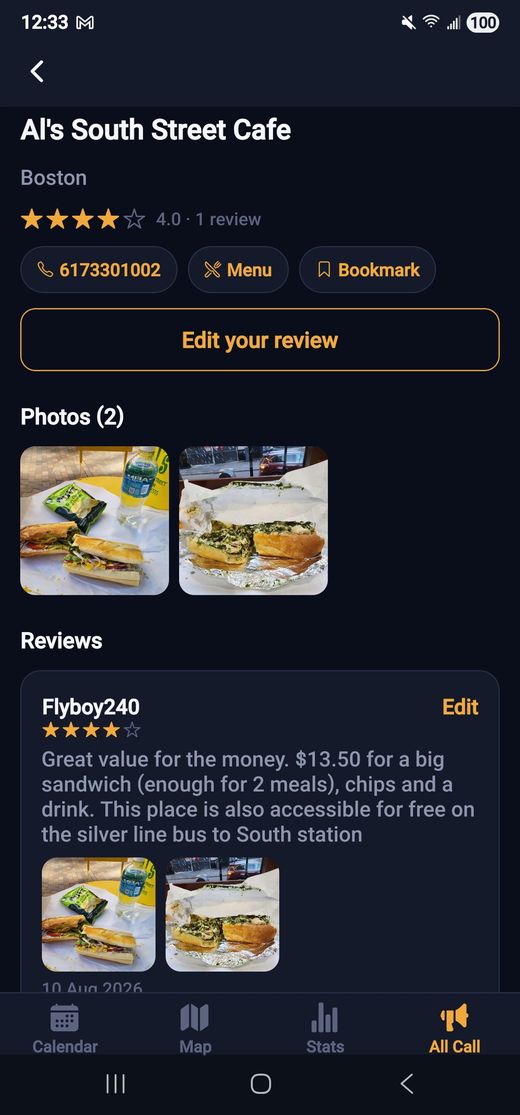
- Open All Call → Restaurants — it starts on your current city, but you can search any city to plan an upcoming layover ahead of time.
- Tap a restaurant to see its rating, phone number, address, and every review left by other crew.
- Leave your own star rating, a comment, and a photo — the review posts instantly, and a photo goes live once approved.
Layover Tips
The practical stuff crew trade informally — shuttle timing, walkability, where the nearest gym is — crowdsourced per city.
- Open All Call → Layover Tips — it starts on your current city, same as Restaurants.
- General tips (safety, walkability, food, things to do) are visible to every crew member, regardless of airline.
- Tag a tip to your own airline for hotel/shuttle logistics that only apply there — since crew hotels differ by airline, an untagged shuttle tip could be wrong for someone staying somewhere else. No hotel names ever get stored, just the airline.
- Mark a tip Short layover, Long layover, or General — independent of the airline tag, since even a general tip (like "worth an Uber across town") is only useful if you actually have the time.
- City is picked from the same autocomplete used everywhere else in the app, so tips for the same city don't get split up by spelling.
- Edit or delete your own tips any time from the pencil and trash icons on the card.
- Got a real layover with time to spare? You'll get a nudge to add a tip (or a restaurant review) partway through it — with quick pointers on writing a useful one the first time.
See it in action
New tile on the All Call quick-action row.
Scope (General or an airline) and length are two independent badges.
Length and airline scope are set independently — this one's general, no airline needed.
Meetup photos
Photos only leave the app for social media once every single person in them says yes — silence never counts as a yes.
- Inside a meetup, open the Photos section and tap + to add one — use your phone's native camera (filters and all) or pick one from your library.
- Everyone tagged in the photo gets asked to approve it before it's marked ready to share. One no kills it, permanently.
- Regardless of approval status, anyone can download any meetup photo straight to their own phone, any time — that part doesn't require anyone else's say-so.
Your profile, your rules
Verification, identity, and the safety controls that aren't tied to any one tab.
Getting verified
No passwords, no open sign-up — every account is checked against real crew credentials before it can see or message anyone.
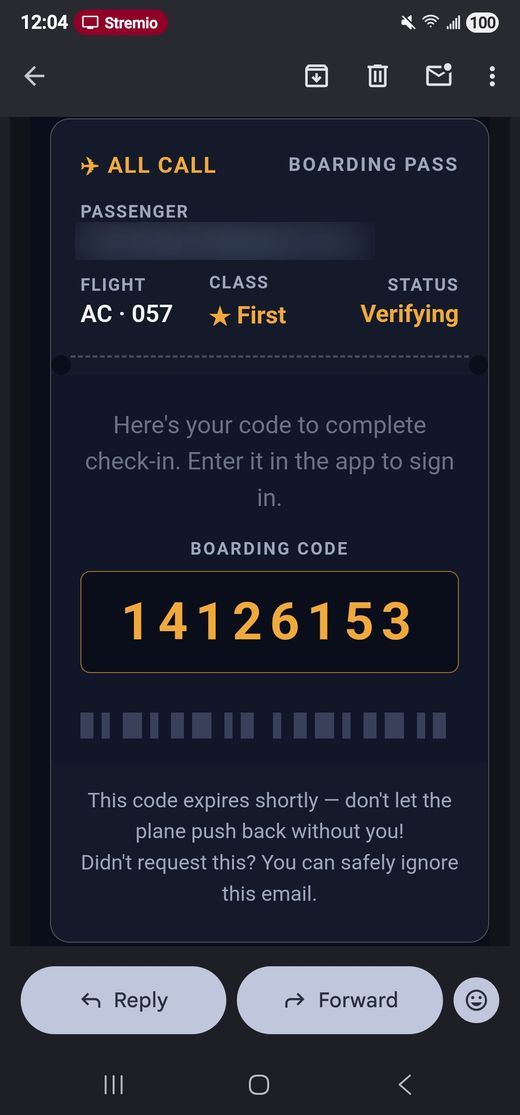
- Enter your email — All Call sends you a one-time code instead of a password, so there's nothing to forget.
- Enter that code to sign in.
- Submit your airline and employee number so it can be verified against real crew records.
- Once verified, the rest of the app unlocks. No randoms, no recruiters — every other account you'll ever see has been through the same check.
Home base & home city
Where you're based and where you actually live can be two different cities — All Call tracks both instead of forcing one toggle to do both jobs.
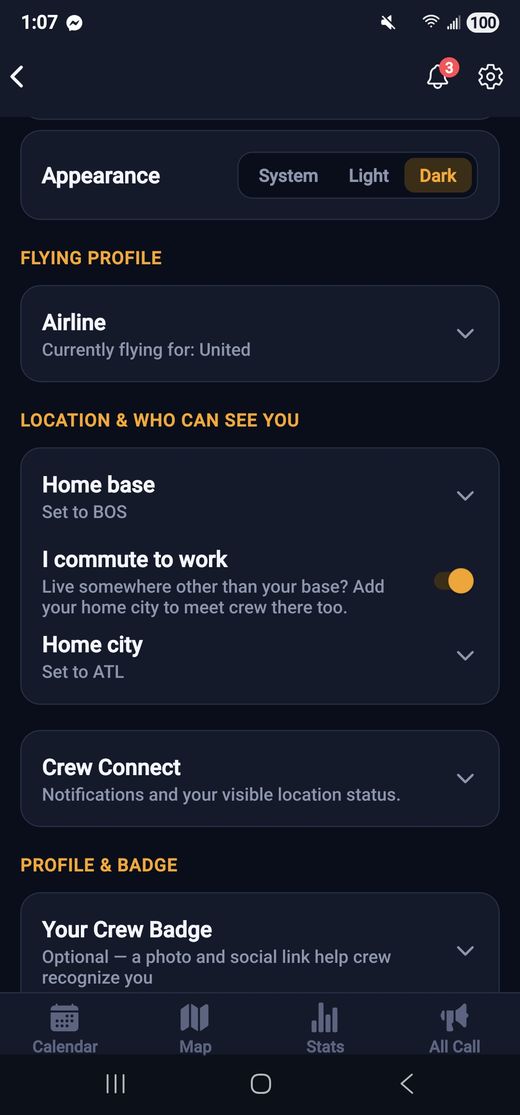
- Open Settings → Flying profile.
- Set your home base airport.
- If you commute to work, turn on "I commute" — this reveals a separate home city field, so friends and crew can tell your commuter city apart from where you're actually based.
Crew Badge
A proper ID-card look for your profile — name, airline, and a running tally of meetups you've actually shown up to.
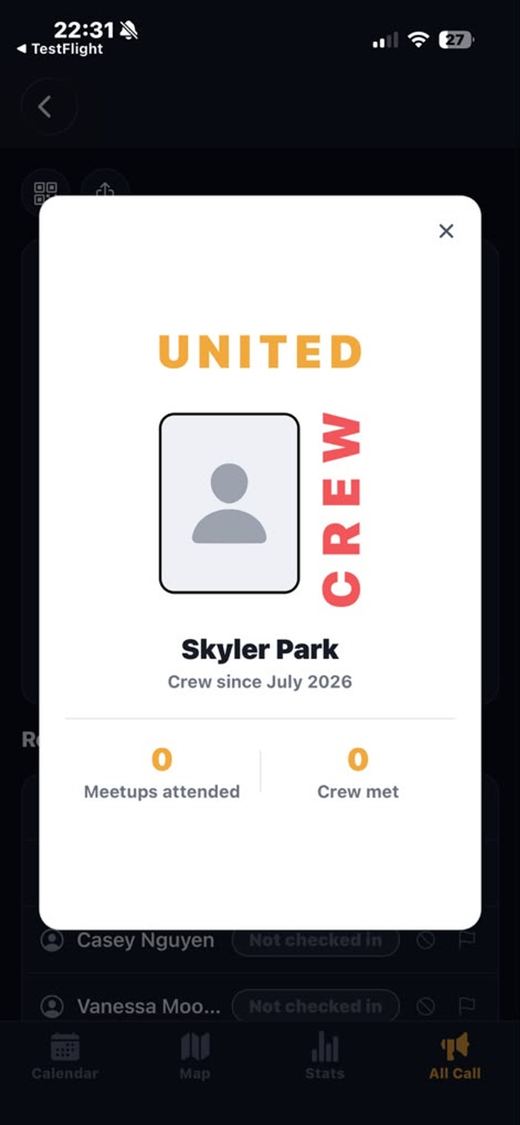
- Open Settings → Profile & badge to view your Crew Badge any time.
- Tap the QR icon on your own badge to show a scannable code — a friend can scan it to add you instantly.
Restaurant bookmarks
Save the places worth going back to — with a photo and a note on what to order. Private to you, unlike the shared restaurant reviews under All Call.
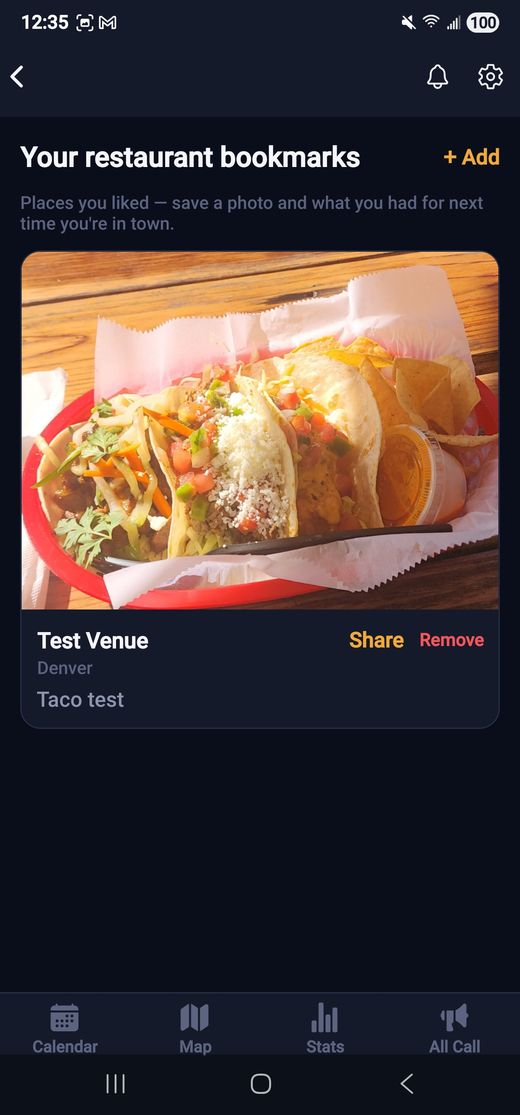
- Open Settings → Restaurant bookmarks and tap + to add a place, with an optional photo, address, phone number, and notes (what you had, what to get next time).
- Next time you create a meetup or All Call at that same spot, your old notes pop up automatically as a reminder.
Block & report
Your own no-fly list. One tap, and someone is grounded from your airspace for good.
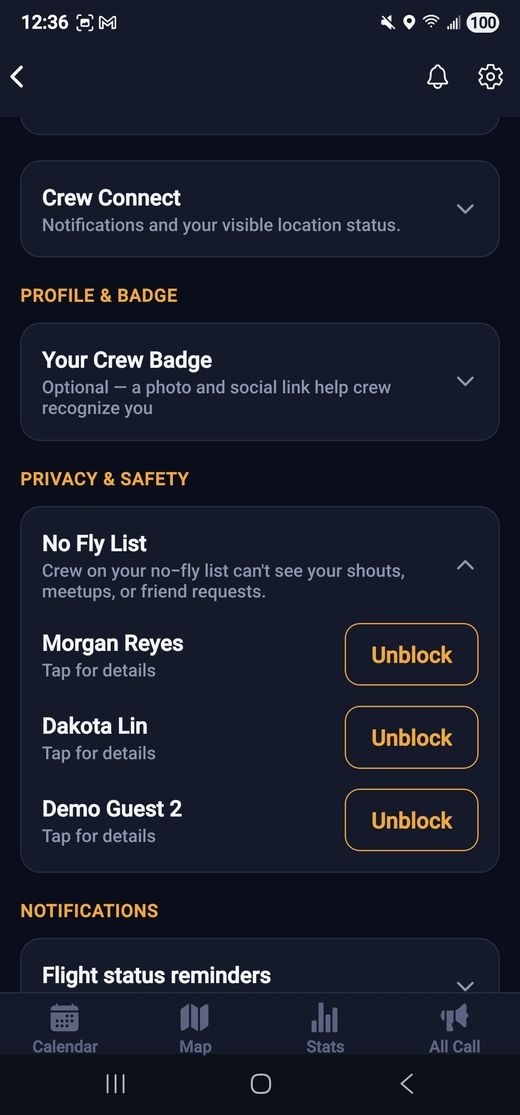
- Open the person's profile and tap the ⋯ menu.
- Choose Block to stop seeing each other immediately (both directions), or Report to flag them for review.
Crossed-paths alerts
You blocked them for a reason. All Call remembers, even when they don't take the hint.
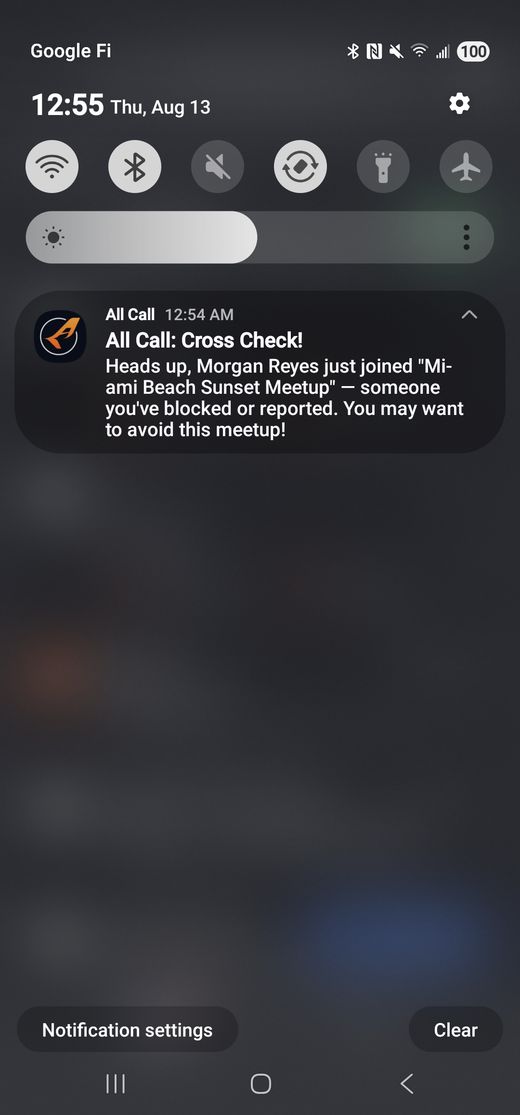
- Blocked or reported someone? All Call quietly keeps an eye on every meetup you're both in range of.
- The second they join one you're already part of, you get a paths crossed alert — before you're stuck making small talk with your nemesis over appetizers.
- What you do with that information is your business. Skip it, or go anyway and enjoy the tension. We just keep you informed.
Screenshots marked "coming soon" above will be filled in — and short video clips added — from the admin portal as they're produced. This page updates in place, no app update required.